Changing Your Password from the JunoPort - Windows98 You can change your password by clicking on the JunoPort button and selecting Profile. You may also change your password through the My Juno page. For instructions with screenshots on the My Juno password change tool, click here. 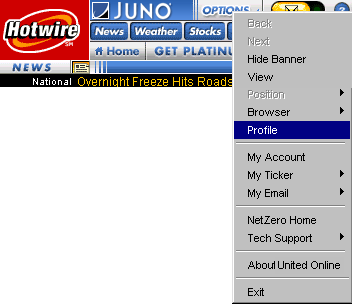 - Click on the
 button and select Profile. button and select Profile.
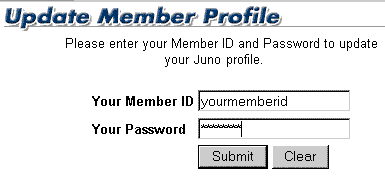 - In the Your Member ID text box, type your Member ID.
- In the Your Password text box, type your password.
- Click on the Submit button.
 - To change your password, click on the Click Here link at the top of the page.
 - On the Password Change screen, enter your Member ID in the first box. (Your Member ID is your email address, minus the @juno.com)
- Under Current Password, enter your current password.
- In the boxes for New Password, enter your new password twice. Your new password must be lowercase letters or numbers, between 3 and 12 characters long.
- Click Submit Your Request when done, or Clear The Form to start over.
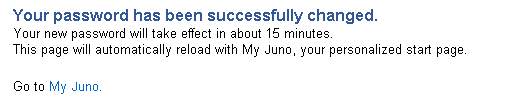 - If everything was successful, you will get the message Your password has been successfully changed. Your new password will take effect in about 15 minutes.
| |




 Billing History &





